User interface
The messages module lets you setup access controlled message threads.
Module layout
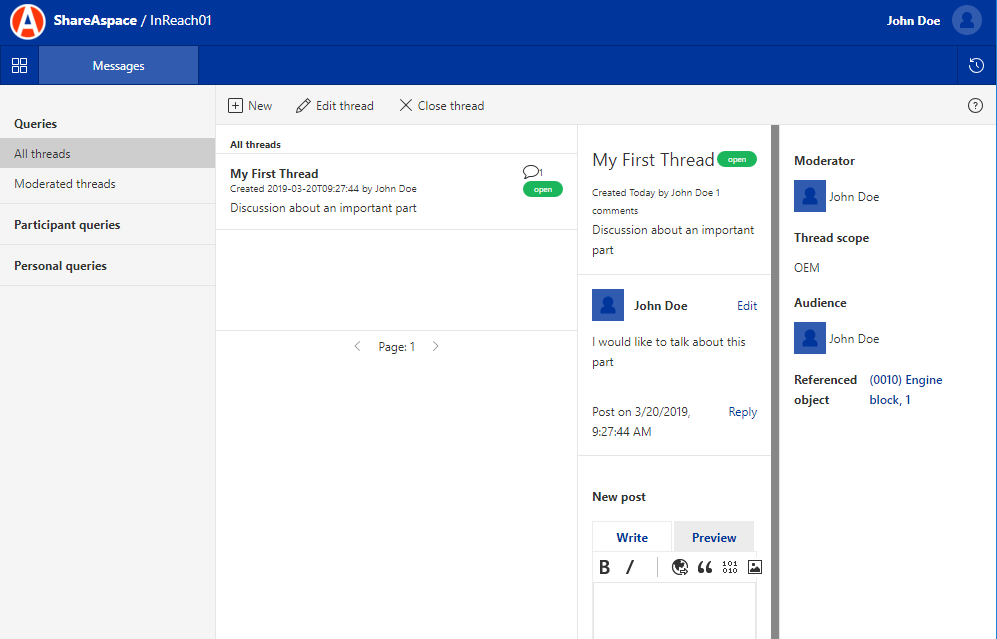
The layout is very similar to the authoring module described in the Space user guide.
The main difference is that there are four sections. What is described as the detailed view for the generic Module layout is divided into two sections.
The first section is the Message Thread itself. Within the thread view you can post new messages as well as reply to existing messages.
On the right hand side of the thread you can see details about the thread.
Create new thread
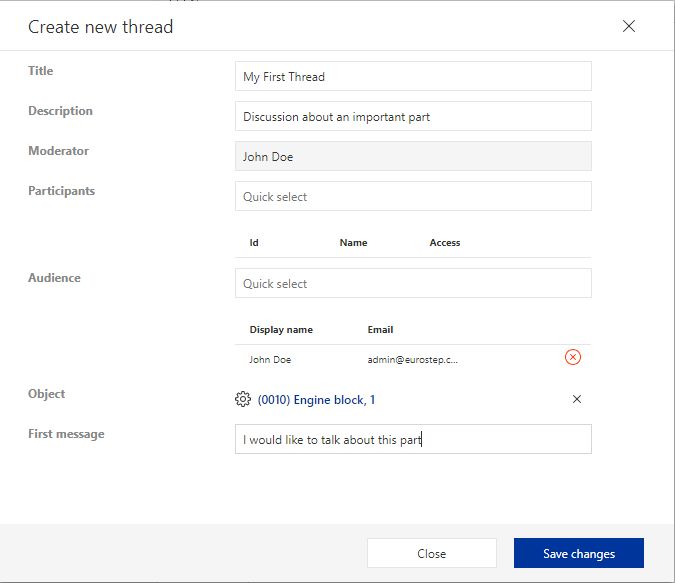
To create a thread, click the New button on the ribbon menu.
| Attribute | Description |
|---|---|
| Title | The title of your new message thread. |
| Description | The description of your new message thread. |
| Moderator | The creator of the thread will also be its moderator. The moderator moderates the thread and can for example close the thread. If the moderator has the access to share information, the moderator can also invite users from other participants to partake in the discussions. |
| Participants | By default the thread will only be visible to users with access to the Participant that own the thread. The owning Participant will be the Participant for which your active role is assigned to. If you have access to share information with other Participants you can add them to the thread by searching for them in the Quick Select control. |
| Audience | Users that take part in the discussion by posting something to a message thread will automatically be added to the audience list. It is also possible to add users to the audience list when creating or editing the thread. Users on the audience list with the mail out setting active will receive email notifications from the system when something happens within the thread. |
| Object | An object can be set as the topic for a thread. Users looking at the thread will be able to navigate to this specific object. It is also possible to configure queries for SoftTypes to find Threads that are discussing a particular object. |
| First Message | It is required to have one message in the thread when creating it. |
Working in a thread
As long as a you have access to a thread and the thread has the status of open you can
post messages to it. This is done by
writing your message in the message editor at the bottom of a thread.
Click the Post button to post your message.
Tip
It is possible to create inline links to objects within the space using the Message markdown editor. These links cannot be indexed.
You also have the possibility to respond to other messages. This is done by
clicking the Reply link at the bottom left of the message.
Any message that you have written you can edit. This is done by clicking the
Edit link on the right hand side of your message or response.
Edit thread
As the moderator of a thread you can edit it. Select the thread that you
want to edit and click the Edit thread button on the ribbon menu.
Doing this will bring up the edit form - similar to the create form.
Close / re-open thread
As the moderator of a thread you can control the status of the thread.
To close a thread - select an open thread and click the Close button on the
ribbon menu.
To Re-open a thread - select a closed thread and click the Re-open button
on the ribbon menu.