User interface
The Data Exchange Module is used for managing queues and running Data Exchange Jobs used for import and export of information.
It is common that a Job has multiple tasks, e.g. a Task running a mapper from one format to a ShareAspace standard format followed by the ShareAspace import Task.
Layout
The layout is very similar to the authoring module described in the Space user guide.
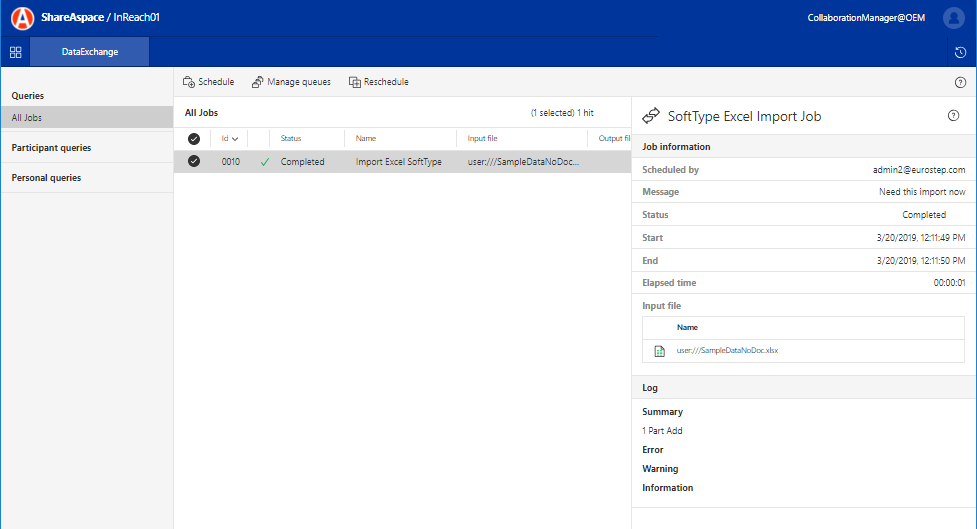
The result list will commonly show the result of a DataExchange Job query.
The detailed view to the right will show detailed information about the selected Job. It presents:
- Who scheduled the job
- Job message (description)
- The current status of a job
- Start- and end-times of the
- Elapsed time
- Input file / Output file
- Log files if applicable
- Summary Log
The contents of the Job summary depends on what type of Job was run. In the screen above we can see an example of the log for a successful SoftType import.
Schedule job
To Schedule a Job, click the Schedule button on the ribbon menu.
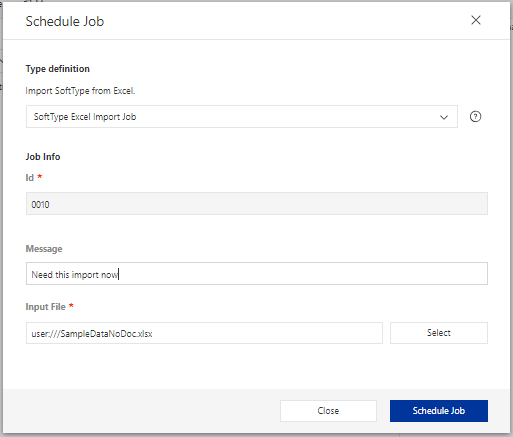
In the example above we have started by selecting what type of
Job to schedule. In this case, a Job identified as SoftTypeExcelImportJob.
We have provided a description (message) for the Job instance, and we
have selected the input file from the Unmanaged File Area.
Note
The form for Scheduling a Job is completely dependent on the configuration. Often the Queue to be used is not exposed to the end user.
Reschedule job
To Reschedule a Job, select it from the list and click the Reschedule
button on the ribbon menu.
It does not matter if the previous Job was successful or not.
Clicking the Reschedule button will bring up a new form for
scheduling a new Job of the same type. The form will copy the
configured values from the previous Job but lets you alter the
input parameters before scheduling the Job again.
Manage queues
If you have the access modifier Manage Space Definition on any
of your roles, you will be able to manage the configured DataExchange
queues.
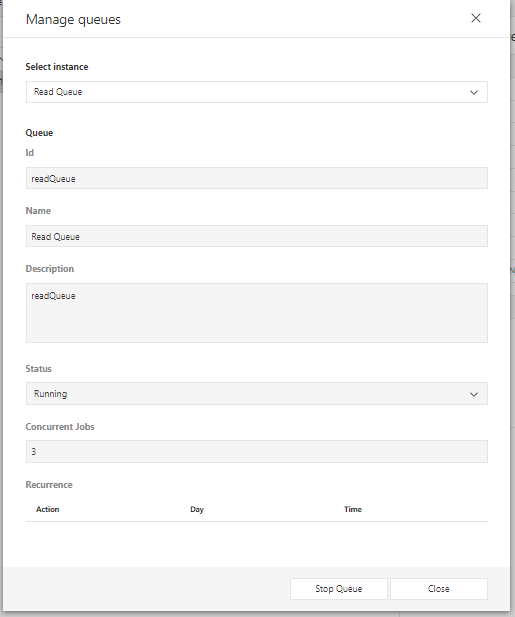
By clicking the Manage Queues button in the ribbon menu, you
will bring up a form that allows you to start and/or stop queues that
are defined. Stopping a queue will still allow Jobs to be queued but
the queue will not process any of the Jobs in that queue.
Cancel job
When a Job is running or if a Job has ended up in a Staged state,
selecting that Job will show a Cancel button in the ribbon menu.
Clicking the button will cancel the Job.
Commit
Jobs can be configured to end up in a Staged state. This can be an adaptive staging - based on warnings or errors, or this can be a mandatory staging, i.e. the job will always be staged before data can be committed to the database.
As long as there are no errors reported you have the option to let the staged job continue to Commit data to you ShareAspace Space.
By selecting a staged Job that is not reporting errors, a Commit
button will show up on the ribbon menu. Clicking the button will
commit the staged data to your Space.
Out of the box job
There are several ways to import or export data to and from ShareAspace but there are only two
formats that ShareAspace knows about, JSON and binary.
To add more formats Nova has several mappers e.g. the SoftType Excel Mapper
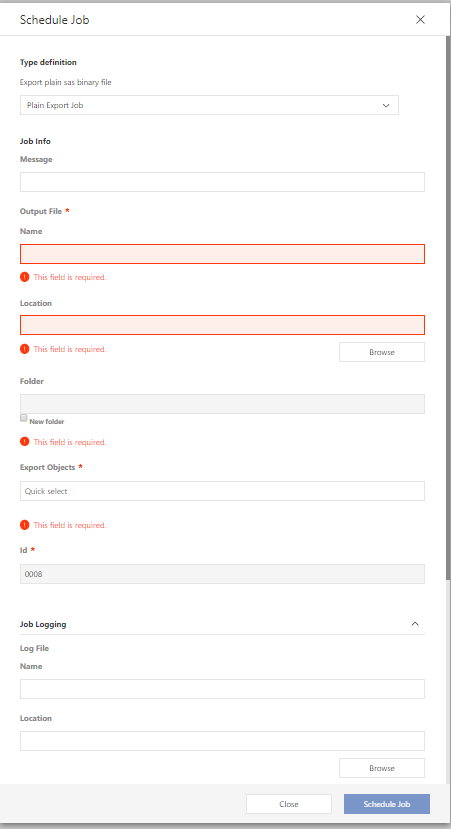
Schedule a plain binary export
To run a plain binary export click Schedule in the Data Exchange module and select the
Plain Export Job in Type definition. Fill in the Message field to associate
a message with the job. Choose a Name for the export file and select a Location by clicking
Browse. To export into a sub-folder of current Location check the New folder checkbox
and write the Folder name.
To enable the job logger expand the Job Logging section and choose a Name for the log file then
select a Location for the log file by clicking Browse and choose folder. To put the log file
into a sub-folder of current Location check the New folder checkbox and write the Folder name.
In the Export Settings section the recursion can be configured. Select the Resolve Depth to
configure how deep the recursion should go (0 will only export the start points, 1 will export
the start point and the direct external references etc.). Set Full Resolve to Yes (true)
when all external references should be resolved otherwise only the external references specified
by Resolve will be exported.
In this template a drop down select is added for File Mode, choose a value based on how to treat files.
To start the job click Schedule Job:
SoftType Excel import
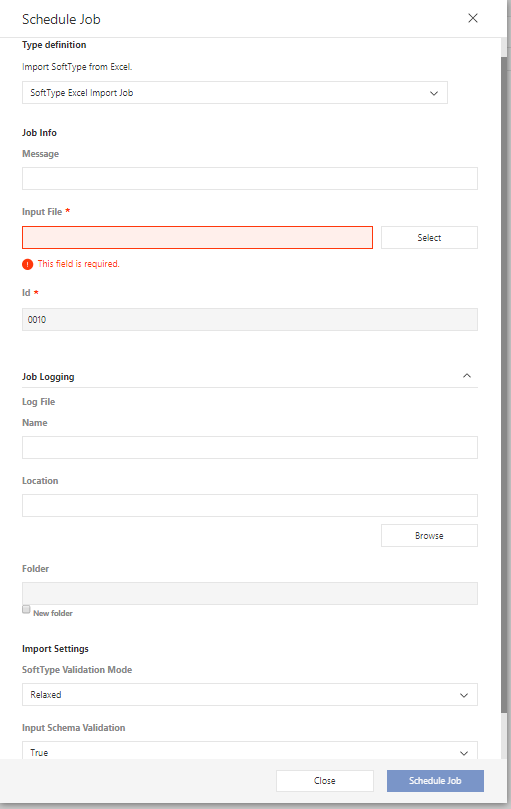
To run an Excel import click Schedule in the Data Exchange module and select the SoftType Excel Import Job in Type definition.
Fill in the Message field to associate a message with the job. To select an Input File
click Select and pick an existing file or upload a file and pick that one.
Choose SoftType Validation Mode:
Relaxed, failed SoftType rules will be rendered as aWarning.Strict, failed SoftType rules will be rendered as anError.
To start the job click Schedule Job
SoftType Excel export
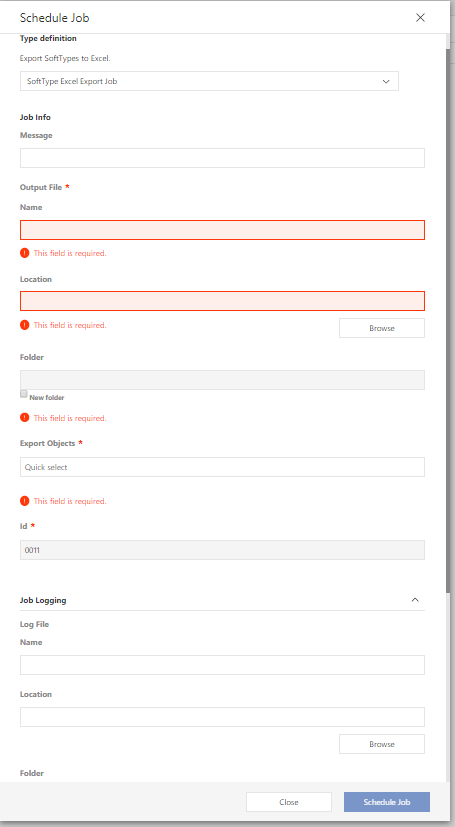
To run an excel export click Schedule in the Data Exchange module and select the SoftType Excel Export Job in Type definition.
Fill in the Message field to associate a message with the job. Choose a Name for the export file and
select a Location by clicking Browse. To export into a sub-folder of current Location check
the New folder checkbox and write the Folder name.
In the Export Settings section the schema for the start point can be selected. Select correct
output schema for all SoftTypes. Drop downs are only added for SoftTypes that have more than one
output schema.
To start the job click Schedule Job
SoftType JSON Import
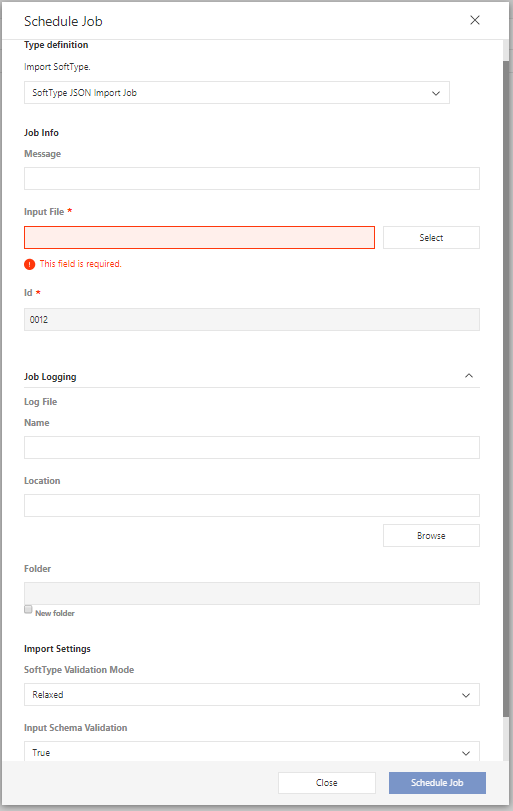
To run a JSON import click Schedule in the Data Exchange module and select the SoftType JSON Import Job in Type definition.
Fill in the Message field to associate a message with the job. To select an Input File
click Select and pick an existing file or upload a file and pick that one.
Choose SoftType Validation Mode:
Relaxed, failed SoftType rules will be rendered as aWarning.Strict, failed SoftType rules will be rendered as anError.
To start the job click Schedule Job
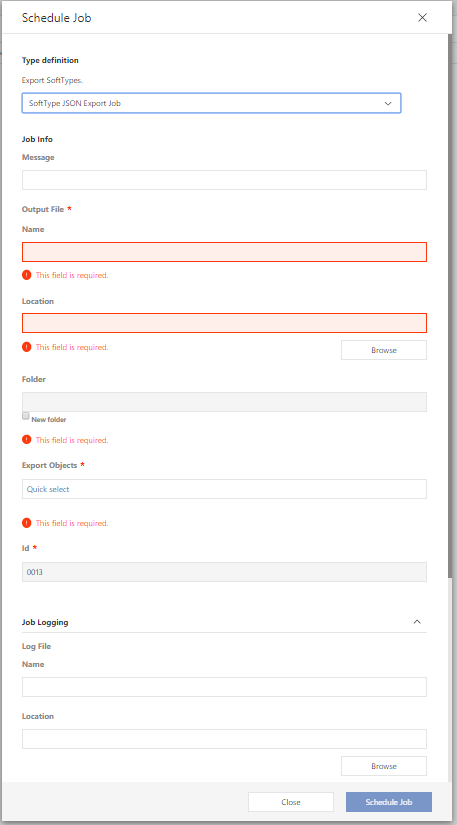
SoftType JSON export
To run a JSON export click Schedule in the Data Exchange module and select the
SoftType JSON Export Job in Type definition. Fill in the Message field to associate
a message with the job. Choose a Name for the export file and select a Location by clicking
Browse. To export into a sub-folder of current Location check the New folder checkbox
and write the Folder name.
To enable the job logger expand the Job Logging section and choose a Name for the log file then
select a Location for the log file by clicking Browse and choose folder. To put the log file
into a sub-folder of current Location check the New folder checkbox and write the Folder name.
In the Export Settings section the schema for the start point can be selected. Select correct
output schema for all SoftTypes. Drop downs are only added for SoftTypes that have more than one
output schema.
In this template a drop down select is added for File Mode, choose a value how to treat files.
To start the job click Schedule Job