Excel template generation
The excel templates are generated using the ExcelTemplateGenerator from a specification file. This is essentially a list of softType schemas taken from the space template and embellished with extra attributes that tell the excel template generator what to include in the excel template and how to handle references.
The specification file can be generated either by hand or from the space template and a config file using the CapabilityAssembler tool. This feature is not fully supported and the generated specification file may need to be modified manually before it is used to create the excel template.
The process is summarized in the diagram below.

Steps for generating excel templates.
Note
In the powershell examples below we do not include any paths for simplicity.
1. Generate the specification file
Generate the specification file from config file and space template using the CapabilityAssembler:
# generate the specification file
sas-ca.exe split -e -ec config-file.json --tp space-template.json
The name and path for the generated specification file(s) are specified in the config file.
Caution
This functionality is provided only as a helper tool for saving time when generating the specification files. The resulting specification file may need to be modified by hand.
Modify the generated specification file
Inspect the specification file generated by of the above command if there are any errors or warnings then the generated specification file needs to be modified. You may also want to modify the specification file if you want to customize the excel template (e.g.: add user-friendly prompts or change the way references are handled etc.)
2. Generate excel template
Generate the excel template from the specification file created in the previous step:
# generate the excel template
ExcelTemplateGenerator.exe -r t -ifp specification-file.json  -ofp excel-template.xlsx -tp space-template.json -y
If there are any errors or warnings then the specification file might need to be modified.
Verify the excel template
To verify that the excel template is set up correctly, test mapping the generated excel template to json:
# test mapping the generated excel template to json
ExcelTemplateGenerator.exe -r i -ifp excel-template.xlsx  -ofp mapped-data.json -tp space-template.json -y
Open the excel template in excel and inspect it.
If you find any issues, modify the specification file and generate the excel template again.
3. Modify the excel template
Open the generated excel template in excel and modify it as needed. Here are some changes that one might need to do:
- manually add reference data to reference data sheets and to validation tables
- change names in validation tables to user-friendly names
- insert a friendly header row(s) in a softType data sheet (note: 'First row' in the control table needs to be updated too)
- add instruction sheets
- add user input sheet(s) and map the data from the user input sheet to a softType data sheet(s)
- lock or hide parts of the template (e.g.: the refence data sheets, validation sheets, softType data sheets, description rows etc. )
- freeze panes
4. Test the excel template
Enter some test data and test that the mapping works:
# test mapping import data
ExcelTemplateGenerator.exe -r i -ifp import-data.xlsx -ofp import-data.json -tp space-template.json -y
Test importing the excel file with test data to a space.
Example powershell script
Here is an example powershell script for generating excel templates.
function Generate-Excel-Template($name) {

    Write-Host "`r`nProcessing $name specification`r`n"

    # allow for manual inspection and modification
    Write-Host "`r`nModify $name.json specification if needed. Press enter when ready..." -BackgroundColor White -ForegroundColor DarkBlue
    Read-Host

    # generate excel templates
    & $excelGenerator -r t -ifp "$specificationFolder\$name.json"  -ofp "$excelFolder\$name.xlsx" -tp $spaceTemplate -y

    # test mapping to json to ensure that there are no errors in the excel setup
    & $excelGenerator -r i -ifp "$excelFolder\$name.xlsx" -ofp "$excelFolder\$name-mapped.json" -tp $spaceTemplate -y
}

Push-Location $PSScriptRoot

# setup paths
$toolsFolder = ".\tools"
$caTool = "$toolsFolder\CapabilityAssembler\sas-ca.exe"
$excelGenerator = "$toolsFolder\ExcelTemplateGenerator\ExcelTemplateGenerator.exe"
$rootFolder = "."
$spaceTemplate = "$rootFolder\space-template.json"
$excelFolder = "$rootFolder\excel-templates"
$specificationFolder = "$rootFolder\specifications"


# generate the specification files
& $caTool split -e -ec $specificationFolder\config.json --tp $spaceTemplate

# generate the excel templates
Generate-Excel-Template "example-1"
Generate-Excel-Template "example-2"
Generate-Excel-Template "example-3"

Pop-Location
This powershell script can be downloaded together with an example config file, a space template and instructions:
Download example
Config file
The config file is used to generate one or more excel specification file(s).
The content of the config file determines which softTypes and schemas should be included in each generated specification file and how the references should be handled. It also affects the order in which fields appear in the softType data sheets.
Here is an example of a config file:
{
    "priorityFields": "id,documentId,versionId,name,description,type,status", // these fields will be placed before all other fields
    "excludeFields": [ // these fields will be excluded
        "*.*.start",
        "*.*.end",
        "*.*.*.start",
        "*.*.*.end",
        "Document.createdByOrganization",
        "Document.intellectualPropertyOwners",
        "Document.releasedByOrganization",
        "*.exportControlCodes.codeCreatorType",
        "*.exportControlCodes.createdByOrganization",
    ],
    "excelSpecifications": [
        {
            "name": "Example",
            "outputFilePath": "example.json", // path for the generated specification file
            "defaultRefSchema": "import", // default schema for references
            "includeSchemas": [ // schemas to be included as softType data sheets
                {
                    "softTypeId": "Document",
                    "schemaId": "import"
                },
                {
                    "softTypeId": "IdentifyingContext",
                    "schemaId": "importRef",
                    "sheetName": "Id Contexts"  // custom sheet name
                },
                {
                    "softTypeId": "OrganizationIdContext",
                    "schemaId": "importRef",
                    "sheetName": "Id Contexts (Organization)"
                }
            ],
            "specialRefSchemas": [ // schemas to be used for references instead of the defaultRefSchema
                {
                    "softTypeId": "IdentifyingContext",
                    "schemaId": "importRef"
                },
                {
                    "softTypeId": "OrganizationIdContext",
                    "schemaId": "importRef"
                }
            ],
            "referenceDataSchemas": [ // schemas to be included as reference data sheets
                {
                    "softTypeId": "GeneralClass",
                    "schemaId": "importRef",
                    "sheetName": "Classifications"
                },
                {
                    "softTypeId": "Country",
                    "schemaId": "importRef"
                },
                {
                    "softTypeId": "Language",
                    "schemaId": "importRef"
                },
                {
                    "softTypeId": "SecurityClass",
                    "schemaId": "importRef"
                },
                {
                    "softTypeId": "Status",
                    "schemaId": "importRef"
                }
            ],
            "referenceDataOrigin": "origin:unknown" // the origin of the reference data instances will be set to this value
        },
        {
            "name": "AnotherExample", // no includeSchemas specified => all schemas that start with "import" will be included
            "outputFilePath": "another-example.json",
            "defaultRefSchema": "import",
            "referenceDataSchemas": []
        }
    ],
    	"additionalReferenceData": { // needed for reference data that are not in the space template
		"referenceDataPackages": [ // array of packages from which to load the reference data instances
			{
				"packageFilePath": "C:\\Program Files\\Eurostep\\ShareAspace\\ReferenceData\\Packages\\ShareAspace.IPSCFI.SI.refDataPackage.json",
				"modulesPath": "C:\\Program Files\\Eurostep\\ShareAspace\\ReferenceData",
				"includeDeprecated": false
			}
		],
		"referenceDataInstances": [  // alternative way to load custom reference data
			{
				"softTypeId": "GeneralClass",
				"instances": [
					{
						"$id": "CUSTOM_DOCUMENT_CATEGORY_1",
						"data": {
							"id": "CUSTOM_DOCUMENT_CATEGORY_1",
							"name": "Custom Category 1"
						}
					},
					{
						"$id": "CUSTOM_DOCUMENT_CATEGORY_2",
						"data": {
							"id": "CUSTOM_DOCUMENT_CATEGORY_2",
							"name": "Custom Category 2"
						}
					}
				]
			}
		],
		"validationTableData": [ // array of validation table specifications
			{
				"tables": [ // list of validation tables to which the allowed instances are added
					"Document_category_value"
				],
				"allowedInstances": [ // list of allowed instances
					{
						"id": "CUSTOM_DOCUMENT_CATEGORY_1", // must be the same as the $id of the instances in the reference data
						"name": "1" // user-friendly name (can be different than the name in the reference data)
					},
					{
						"id": "CUSTOM_DOCUMENT_CATEGORY_2",
						"name": "2"
					}
				]
			},
			{
				"tables": [
					"Document_countryOfOrigin_value"
				],
				"allowedInstances": [
					{
						"id": "GB",
						"name": "United Kingdom of Great Britain and Northern Ireland"
					}
				]
			}
		]
	}
}
Attributes applicable to all specifications
priorityFields(optional)- comma separated list of fields - the fields included here will be placed before all other fields in the softType data sheets
excludeFields(optional)- array of strings
- list of fields that should not be included in the excel template, each field has the following format
- "{softType}.{path}" where path consists of part names separated by a dot
- the softType or any port in the path can be replaced by "*" to match any softType / port at the given level
- examples:
- "Document.children.type" (excludes the type field in the children field of the Document softType)
- "*.acquirerApproval" (excludes the acquirerApproval field in all softTypes)
- "..acquirerApproval" (excludes the acquirerApproval field that is on the second level in any softType)
- "..*.end" (excludes the end field that is on the third level in any softType)
additionalReferenceData(optional)- used for including reference data that are not in the space template
referenceDataPackages(optional)- used for adding reference data from reference data packages
- list of packages from which to load the reference data instances
- each package contains:
packageFilePath(mandatory)- path to the reference data package
- can be absolute or relative to the location of the config.json
modulesPath(mandatory)- path to the folder that containst reference data modules for this package
- can be absolute or relative to the location of the config.json
- the folder or its subfolders must contain instance files in json format
Note
The example code contains a powershell script
map-excel-instance-files-to-json.ps1for converting instance files from excel to json format.
includeDeprecated(optional)- boolean flag, if false or missing then the "deprecated" instances are not included
referenceDataInstances(optional)- this is an alternative way to load custom reference data
- useful for loading reference data that are not included in any reference data package or when one wants to include only some of the instances from the data package
- contains a list of softTypes, each with softTypeId and the instances
validationTableData(optional)- list of validation table specifications
- used to add data to validation tables
- useful for the ports that do not have a list of allowed instances in the space template
- can be also used to change the friendly names that are shown in the dropdown lists
- each validation table contains:
tables(mandatory)- list of the names of validation tables to which the allowed instances are added
allowedInstances(mandatory)- list of allowed instances, each with
idandname- the
idmust be the same as the$idof the instance in the relevant reference data sheet
- the
- list of allowed instances, each with
Attributes specific to each excelSpecification
name(mandatory)- name of the specification
outputFilePath(mandatory)- path for the generated specification file
- the path can be either absolute or relative (to the location of the config file)
- the directory must exist
defaultRefSchema(mandatory)- default schema for references
includeSchemas(optional)- list of softType schemas that should be included as softType data sheets
- if this list is empty then all schemas that start with "import" will be included
specialRefSchemas(optional)- list of softType schemas
- if a reference to a particular softType should not use the
defaultRefSchema, then that softType should be included here with another schema
referenceDataSchemas(mandatory)- list of softType schemas that should be included as reference data sheets
referenceDataOrigin(optional)- the origin of the reference data instances will be set to this value
specificReferences(optional)- used to specify referencing a specific softType
- useful for ports that allow multiple softTypes - to restrict the reference to one of the sofTypes only
- can be also used to overwrite the prompt that is presented when the user clicks on the description cell for the field
- each specific reference contains:
field(mandatory)- the field(s) for which the reference is applicable
- the format is "{softType}.{path}" where path consists of port names separated by a dot
- the softType or any port in the path can be replaced by "*" to match any softType / port at the given level
- examples:
- "Document.documentId.context" (the specific reference will be used for documentId.context port in the Document softType)
- "*.createdByPerson.value" (the specific reference will be used for createdByPerson.value port in all the softTypes)
referencedSchema(mandatory)- softType schema that should be referenced reference
- this can be either a reference data sheet or softType data sheet
- consists of:
softTypeId(string)schemaId(string)
customPrompt(optional)- overrides the default prompt that appears when user clicks on the description cell
- used to specify a user-friendly text
Attributes specific to each softType schema
Each softType schema is specified by a combination of:
softTypeId(mandatory)schemaId(mandatory)sheetName(optional)- used for specifying a custom sheet name
- particularly useful when the default sheet name exceeds 31 characters
Specification file
The specification file is used to generate the excel template. It is essentially a list of softType schemas with extra attributes added.
Root level attributes
excelUseControlSheet(bool)- if true, the new excel template is produced, otherwise the old code is used
excelMetaData- array of
heading(string) +text(string) - used to specify things like
- space template name
- space template version
- creation date
- array of
excelInstructions- array of
heading(string) +text(string) - will appear on the Instruction sheet
- array of
excelReferenceDataSheets- array of
softType(string)sheetName(string) - must not exceed 31 chars and must not include any underscore charactersschema(object) - copied from space template, with extra attributes addedinstances(array) - copied from space template - or added manually
excelValidationTables- array of
name(string) - must be unique, must include an underscore characterssheetName(string)referenceDataSheetName(string) - must not exceed 31 chars and must not include any underscore charactersallowedInstances(array)- each allowed instance has
idandname- theidmust be the$idof one of theinstancesin the relevant excelReferenceDataSheet
- each allowed instance has
SoftType schema level attributes
excelInclude(bool)- if true, the schema will be included
excelSheetName(string)- used for the name of the softType data sheet
- must not exceed 31 chars and must not include any underscore characters
excelInstructions(array)- array of
heading(string) +text(string) - will appear on the Instruction sheet
- array of
Field level attributes
excelInclude(bool)- if true, the field will be included
excelPrompt(string)- text will be displayed when user clicks on the description row cell for this field
excelValidationTableName(string)- must be the
nameof one of theexcelValidationTables
- must be the
excelReference(object)softType(string) +schema(string)
Alternative way to generate excel template using ConfigTool
To be able to generate an Excel template with the Configuration Tool the user needs to have the
space template for the actual space where the Excel import is to be used. If the space
template is not available it can be downloaded from ShareAspace.
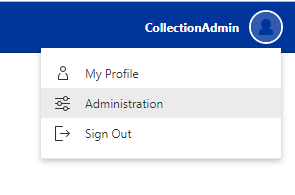
To download the space template you need to be a collection administrator. Log on to
ShareAspace and in the drop down menu in the upper right corner select Administration.
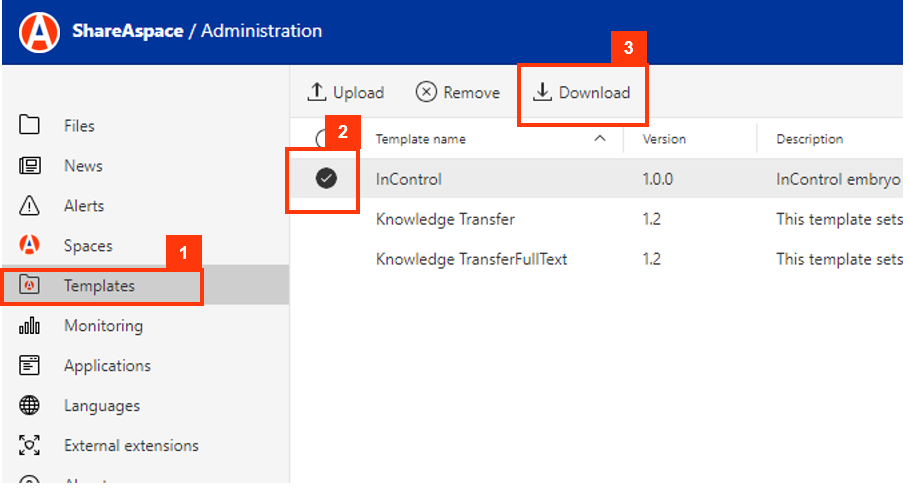
In the template administration area:
- Select
Templatesin the left menu. - Select template to download.
- Click the
Downloadbutton.
Once the user has obtained the space template, the user can use that to generate a SoftType Excel template with
the Configuration Tool. If the Configuration Tool is not installed on the computer then that has to
be done using the MSI ConfigTool-x.y.z.build.msi, the msi will set up a shortcut (ConfigurationTool) on the Start menu.
When the Configuration Tool application is started the user is prompted to Open File. Select the
space template by clicking the Open File button. When the application has started click File in
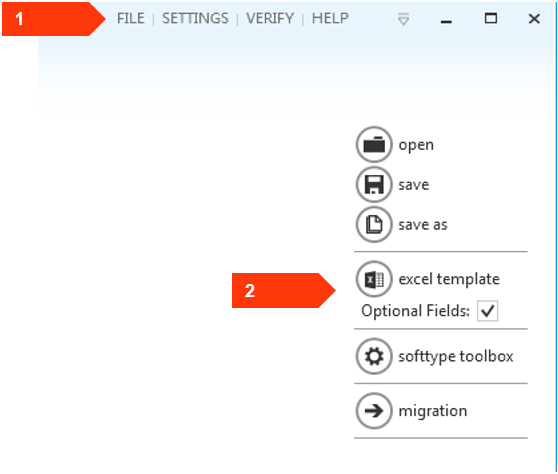
the upper right corner and then click excel template in the menu that appeared to the right. In the
resulting file dialog choose a name and click Save.